

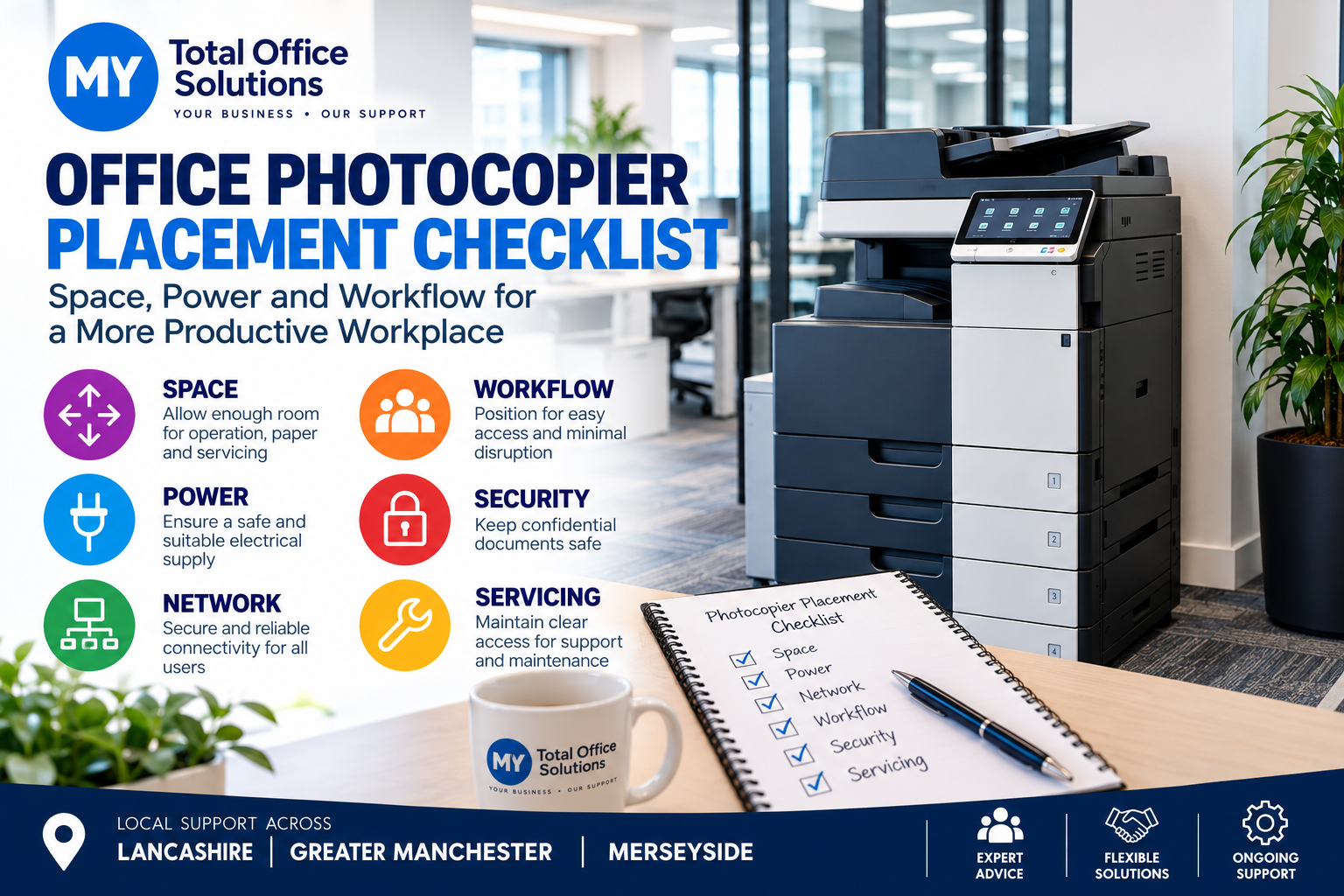
Where should you put a shared office photocopier? The right location can make printing easier, reduce interruptions and keep cables and confidential paperwork out of the way. The wrong location can create queues, block walkways and make routine servicing awkward. This practical office photocopier placement checklist is for businesses planning a new or refurbished multifunction copier in Lancashire, Greater Manchester and Merseyside.
1. Start with the people and documents, not the empty corner
Map the tasks your team actually performs: printing invoices, copying signed documents, scanning contracts, producing meeting packs and printing occasional A3 plans or posters. A copier used by several departments should be reasonably accessible to those teams without forcing staff to cross a busy reception or enter a restricted office.
Ask who prints most frequently, who needs confidential output, and whether there are predictable peaks at the start or end of each working day. A centrally placed machine may work for a small team, while a larger site might benefit from a main A3 device and a smaller departmental printer. Do not buy extra equipment before checking usage: our office printing cost calculator explains how to compare actual monthly volumes.
2. Measure the complete working space
Do not measure only the copier’s footprint. Leave room for opening paper drawers, the side and front covers, the document feeder and any finishing accessories. Engineers may need access to panels during maintenance. Exact clearance requirements vary by model, so use the manufacturer’s installation guide and confirm the space with your supplier before delivery.
Check the full delivery route, too: entrance doors, corridors, lifts, thresholds and any stairs. A machine that fits its final position may still be impossible to move there safely. Where space is tight, obtain the dimensions of the actual proposed machine rather than relying on a generic A3 copier photograph.
Quick space-planning questions
- Can paper trays and service covers open without hitting furniture?
- Is there enough room for a colleague to collect prints while another person walks past?
- Can delivery staff move the machine into position without obstructing fire exits?
- Is there somewhere nearby to store paper without piling boxes against ventilation openings?
- Will wheelchair users and colleagues with limited mobility be able to reach the controls comfortably?
3. Check electricity, ventilation and the working environment
Confirm the electrical supply required for the exact model with your installer. Use a suitable, accessible socket and follow the manufacturer’s instructions; do not assume that an overloaded extension lead or trailing cable is acceptable. Plan the cable route so it does not create a trip hazard.
Copiers also need ventilation. Avoid boxing the machine into a sealed cupboard, placing it against a radiator or exposing it to persistent moisture and direct heat. Keep ventilation slots unobstructed and follow the supplier’s recommended temperature and clearance limits. If your office has an unusual environment, such as a dusty workshop reception, mention this before installation.
4. Decide how the copier will connect to your network
Many multifunction photocopiers support network printing and scanning, but the available connections and features vary. Ask your IT support provider whether a wired network connection, Wi-Fi or another approved arrangement best suits the office. A stable wired connection can be useful for a shared device, particularly where Wi-Fi coverage is patchy.
Before installation, agree who will configure print drivers, user permissions, scan destinations and address books. Confirm whether staff need scan-to-email, scan-to-folder or cloud workflows and whether those options are supported by your chosen device and Microsoft 365 setup. Test scanning from the actual network rather than assuming that a successful test print proves everything works.
Protect confidential information by considering user authentication, secure print release and sensible handling of documents left in output trays. Our office printer security checklist covers the wider security questions.
5. Keep confidential printing away from public areas
Reception desks and open-plan walkways may be convenient but are not always appropriate for payroll, HR, legal or customer records. If a copier is used for sensitive material, position it where authorised staff can collect documents promptly. Secure-print functions, if supported and configured, can reduce the risk of pages sitting unattended.
Think about noise and interruptions as well. A busy multifunction copier beside a meeting room or focused-work area may be distracting. In a small office, a short walk to a dedicated print point can be a worthwhile compromise.
6. Plan for paper, consumables and servicing
Choose a dry, practical place for paper and other supplies. Make sure the person responsible for replenishing paper can reach the trays without moving furniture. Establish who reports faults, who handles routine user checks and who contacts the service provider. Keep the model details and support number accessible to staff.
When comparing service arrangements, ask what is included in the monthly fee, how faults are reported, what happens if the machine cannot be repaired promptly and which consumables are covered. For a separate guide to keeping work moving, read how to reduce printer downtime.
7. Choose A3 capability only where it earns its place
Some offices genuinely need A3 for drawings, presentations, site plans or larger marketing materials. Others mainly print A4 documents and may not need a larger machine. The right choice depends on document types, frequency and available space, not just the equipment’s appearance. Our A3 versus A4 office photocopier guide helps with that decision.
Office photocopier placement checklist: before installation day
| Check | What to confirm |
|---|---|
| People and workflow | Which teams need the device and how often? |
| Dimensions and access | Machine, open trays, service clearance and delivery route measured |
| Power and environment | Suitable socket, safe cable route and adequate ventilation |
| Network and scanning | Connection, drivers, permissions and scan destinations agreed with IT |
| Privacy and accessibility | Output collection, secure printing and access needs considered |
| Support | Fault reporting, consumables and service responsibilities clear |
How MY Print Service can help North West businesses
MY Total Office Solutions supports businesses across Lancashire, Greater Manchester and Merseyside with print services and office equipment. If you are considering a refurbished A3 photocopier, start by discussing your print volumes, available space, scanning needs and support expectations. Refurbished equipment can extend the useful life of an existing machine; the environmental impact of any particular arrangement depends on the equipment and service.
Our advertised MY Print Service Copier package is £34.99 per month, with 600 mono pages, 300 colour pages and 50 A3 colour pages included in the monthly fee. Check the current service terms and any additional usage charges before deciding whether it suits your office.
Planning a copier move or replacement? Contact MY Total Office Solutions or call 0800 1833800 to discuss a practical setup for your workplace.
Frequently asked questions
Can a photocopier go in a cupboard?
Only if the cupboard provides the ventilation, operating clearance and service access required by the specific machine. Check the installation instructions first.
Should a shared copier use Wi-Fi or Ethernet?
Either may be supported. The right choice depends on the device, network reliability, security policy and the IT team’s configuration requirements.
How much space does an A3 photocopier need?
There is no universal answer. Measure the exact model with drawers and service panels open, and confirm delivery access and manufacturer-recommended clearances.


[…] Is there room for the device, paper storage and safe access? Use our office photocopier placement checklist before […]
[…] installation, use our office photocopier placement checklist to review space, power, networking and […]